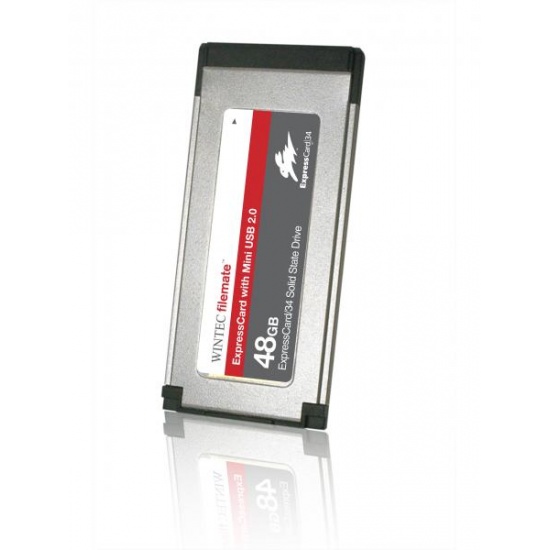
48GB FileMate SolidGO ExpressCard 34 Ultra SSD (w/mini USB port) by Filemate
- 19 reviews
- Item Number: 11386
- Part Number: 3FMS4D048JM-R


No longer available. See alternative options
Key Features
- 48GB Ultra-Speed ExpressCard
- Transfer speed up to 115MB/sec (read) and 65MB/sec (write)
- Includes mini USB2.0 cable
See product description
Similar Products
-
 7.68TB Kingston Technology U.2 PCIe 5.0 NVMe Internal Solid State Drive
IN STOCK
$ 5,724.56 -
 1TB PNY CS1030 M.2 NVMe Internal SSD
IN STOCK
$ 201.52 -
 3.84TB Axiom Enterprise Pro EP650 2.5Inch SFF Internal Solid State Drive
IN STOCK
$ 8,849.56 -
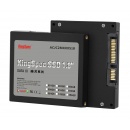 128GB KingSpec 1.8-inch SATA III 6Gbps SSD Solid State Disk (JMicron JMF608 Controller)
IN STOCK
$ 71.03 -
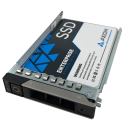 960GB Axiom 2.5Inch SAS V-NAND TLC Internal Solid State Drive
IN STOCK
$ 2,574.41 -
 1TB Kingston KC600 2.5-inch Serial ATA III Internal Solid State Drive
IN STOCK
$ 356.45 -
 960GB AData SU650 2.5-inch SATA 6Gb/s SSD Solid State Disk 3D NAND
IN STOCK
$ 175.96 -
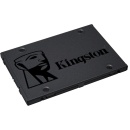 480GB Kingston A400 2.5 Inch Serial ATA III Internal Solid State Drive
IN STOCK
$ 132.09 -
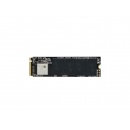 512GB KingSpec M.2 NGFF NVMe 80mm SSD Solid State Disk
IN STOCK
$ 148.69 -
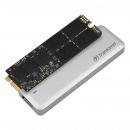 480GB Transcend JetDrive 725 for MacBook Pro (Retina) 15-inch Mid 2012 to Early 2013
IN STOCK
$ 238.00 -
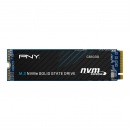 250GB PNY CS1030 M.2 NVMe Internal SSD
IN STOCK
$ 82.68 -
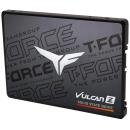 512GB Team Group T-FORCE VULCAN Z 2.5 Inch Serial ATA III 3D NAND Internal Solid State Drive
IN STOCK
$ 114.97 -
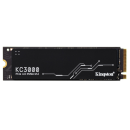 512GB Kingston Technology KC3000 M.2 PCI Express 4.0 Solid State Drive
IN STOCK
$ 177.76
Details
The FileMate SolidGO ExpressCard 34 Ultra SSD provides a convenient plug-in storage for your notebook or portable device. The true PCI-E interface attains super fast direct access to the SSD. For ultimate flexibility, the SolidGO ExpressCard ultra drive includes a mini USB 2.0 connector, so it can double as a portable external hard drive for easy data transfer.
48GB Ultra High-Speed ExpressCard 34 with mini-USB port. Transfer speed up to 116MB/sec (read) and 65MB/sec (write). In retail packaging, and includes mini-USB to USB cable.
48GB Ultra High-Speed ExpressCard 34 with mini-USB port. Transfer speed up to 116MB/sec (read) and 65MB/sec (write). In retail packaging, and includes mini-USB to USB cable.
Specifications
| CAPACITY | 48GB |
| INTERFACE TYPE | ExpressCard 34 interface |
| DEVICE TYPE | SSD Solid State Disk ExpressCard |
| DATA TRANSFER RATES | Read: up to 115MB/sec Write: up to 65MB/sec |
| FLASH STORAGE DETAILS | SSD Flash based storage |
| OPERATING TEMPERATURE | 0°C(32°F) ~70°C(158°F) |
| MTBF | 1,500,000 hours |
| SPECIAL FEATURES | Mini USB port Mini USB to USB cable Ultra high speed data transfer |
| SYSTEM REQUIREMENTS | Windows 2000 / XP / Vista Mac OS 10.4 or later Linux 2.4 or later |
| DIMENSIONS | 75mm x 34mm x 5mm |
| WEIGHT | 18g |
| PACKAGING | Retail packaging |
| WARRANTY | 1 years warranty |
User Reviews
- 11 reviews
- 6 reviews
- 1 review
- 1 review
John Prinsloo
New life for aging MacBook Pro
April 26th 2012 Verified user
I installed this in my 2008 MacBook Pro 15", installed Lion and am plesantly surprised at the speed increases. Bootup in a third of the time, PS opens in 5 seconds, Aperture in 3. My battery life seems to be unaffected too.
Review of 48GB FileMate SolidGO ExpressCard 34 Ultra SSD (w/mini USB port)
Anonymous
Fast - but with some but's
November 28th 2011 Verified user
1. It's really fast.
2. Price per MB is rather high - even compared with other flash memory devices like 32GB usb devices.
3. It's getting pretty warm - potentially reducing the lifespan if used in the ExpressCard slot.
4. Seemingly, it can only be used as a boot device in Apple computers.
Specifically, several attempts to use it as a boot device for Windows 7 and FreeBSD in a Lenovo ThinkPad T410 failed. Maybe a firmware update for the drive could avoid the uncertain implementation of this option through a BIOS update of (different) notebooks?
2. Price per MB is rather high - even compared with other flash memory devices like 32GB usb devices.
3. It's getting pretty warm - potentially reducing the lifespan if used in the ExpressCard slot.
4. Seemingly, it can only be used as a boot device in Apple computers.
Specifically, several attempts to use it as a boot device for Windows 7 and FreeBSD in a Lenovo ThinkPad T410 failed. Maybe a firmware update for the drive could avoid the uncertain implementation of this option through a BIOS update of (different) notebooks?
Review of 48GB FileMate SolidGO ExpressCard 34 Ultra SSD (w/mini USB port)
Bagger bildproduktion
Even better then expected
September 19th 2010 Verified user
This product was better than I expected. I bought two express cards, one to act as scratch disk on my computer. And another to act as boot disk for my older mac book pro from 2007, It literally doubled the performance, even browsing the web is faster. If you want to boost your mac book pro this is an cheap and easy way to do it.
Review of 48GB FileMate SolidGO ExpressCard 34 Ultra SSD (w/mini USB port)
Manuel Bernhardt
Fast and works without issues
June 29th 2010 Verified user
I use the SSD with my early 2008 MacBook Pro and am entirely satisfied. I installed Snow Leopard on it and the put the software I need most on it, and it runs like a charm - many times the internal drive just powers off as it's not needed. The system boots up from zero in 10 seconds, really impressive.
Review of 48GB FileMate SolidGO ExpressCard 34 Ultra SSD (w/mini USB port)
Anonymous
Parfait !
June 27th 2010 Verified user
Compatible avec asus F3JV et XP.
Reconnu après installation du driver.
Réception express : commandé le samedi après-midi, reçu à Marseille le mardi matin avec DHL
Très rapide pour la livraison et pour les transferts de données !
Je ne sais pas si elle pourra être bootable.
Reconnu après installation du driver.
Réception express : commandé le samedi après-midi, reçu à Marseille le mardi matin avec DHL
Très rapide pour la livraison et pour les transferts de données !
Je ne sais pas si elle pourra être bootable.
Review of 48GB FileMate SolidGO ExpressCard 34 Ultra SSD (w/mini USB port)
Henk Baas
MacBookPro3,1 end 2007 as fast as new
June 21st 2010 Verified user
I have the expresscard 34 in use as the system drive and only my useraccount on the internal harddrive installed. The laptop is very fast now. Only, it is not possible to sleep the Mac and when i put something in th trash it wil be deleted immidiately.
Anyway I am very satisfied.
Anyway I am very satisfied.
Review of 48GB FileMate SolidGO ExpressCard 34 Ultra SSD (w/mini USB port)
Anonymous
Great upgrade for an older laptop
April 13th 2010 Verified user
Installed in a MacBook Pro 15" 2007 (Model 2,2). Put the system (Snow Leopard) and applications on it. System boots very fast (12-13 seconds from chime to password) applications start immediately. All other data on a 500GB HDD 7200 prm makes it a really fast and responsive system. highly recommended.
Review of 48GB FileMate SolidGO ExpressCard 34 Ultra SSD (w/mini USB port)
Anonymous
Shipping Cost
April 3rd 2010 Verified user
Product is good but its extremly hot
Review of 48GB FileMate SolidGO ExpressCard 34 Ultra SSD (w/mini USB port)
Anonymous
Fast, hot, Win 7 hiccup
March 3rd 2010 Verified user
The FileMate SolidGo Ultra is a great product. Data rates are as high as promised and I didn't find any other product as good as this one for a better price.
The ExpressCard does get quite hot - as I read in other reviews - but it didn't cause any harm after 5 weeks.
However, I encountered a driver problem when using the SolidGo in the ExpressCard slot. It worked flawlessly in a Studio XPS 16 with Win 7 Professional, but on an Inspiron 9400 running Win 7 Ultimate, file transfers larger than some tens of MB to and from the SolidGo slowed down significantly. Copying files of GB size was impossible, transfer speed slowing down to zero, at which point canceling no longer worked. Updating chipset, JMicron drivers etc. didn't work. Disabling SolidGo's writing cache, which is enabled by default in the device manager, made copying files a bit slower (~50 MB/s writing speed), but finally the card worked without problems.
The ExpressCard does get quite hot - as I read in other reviews - but it didn't cause any harm after 5 weeks.
However, I encountered a driver problem when using the SolidGo in the ExpressCard slot. It worked flawlessly in a Studio XPS 16 with Win 7 Professional, but on an Inspiron 9400 running Win 7 Ultimate, file transfers larger than some tens of MB to and from the SolidGo slowed down significantly. Copying files of GB size was impossible, transfer speed slowing down to zero, at which point canceling no longer worked. Updating chipset, JMicron drivers etc. didn't work. Disabling SolidGo's writing cache, which is enabled by default in the device manager, made copying files a bit slower (~50 MB/s writing speed), but finally the card worked without problems.
Review of 48GB FileMate SolidGO ExpressCard 34 Ultra SSD (w/mini USB port)
Anonymous
Perfect for a mac book pro
February 17th 2010 Verified user
all in the title :)
Review of 48GB FileMate SolidGO ExpressCard 34 Ultra SSD (w/mini USB port)
Add your review